Use and create tags
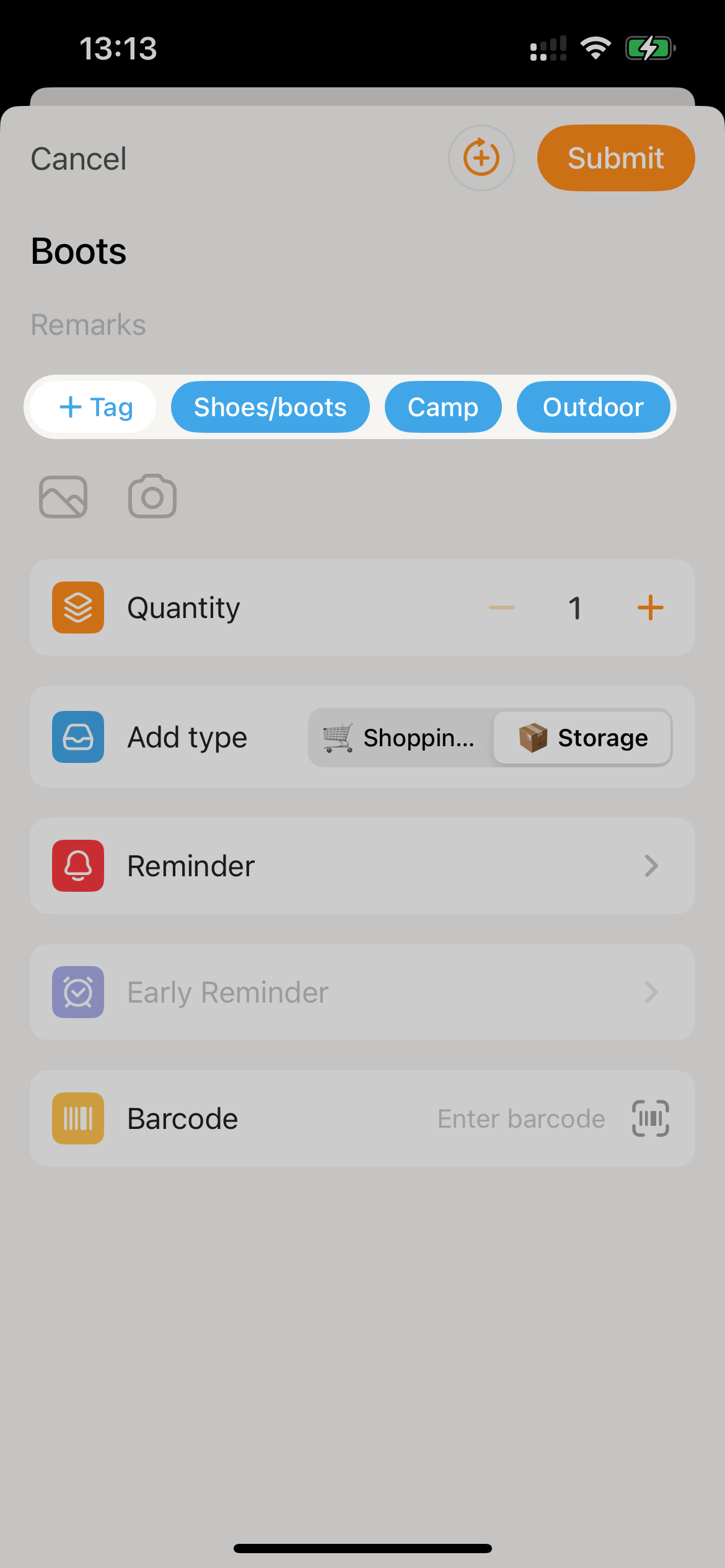
Add tags to items
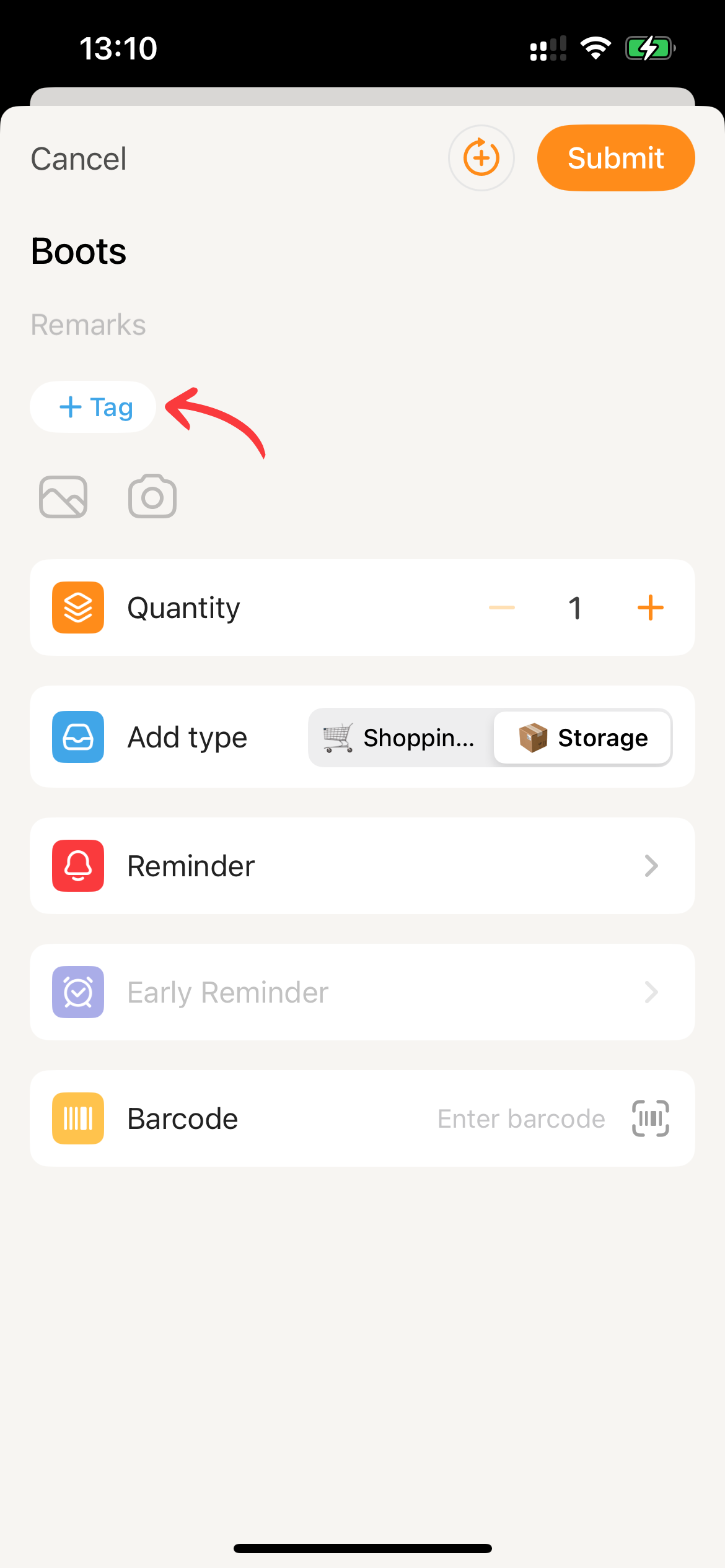
- On the Add New Item, clicking the
+ Tagbutton will display the tag selection page.
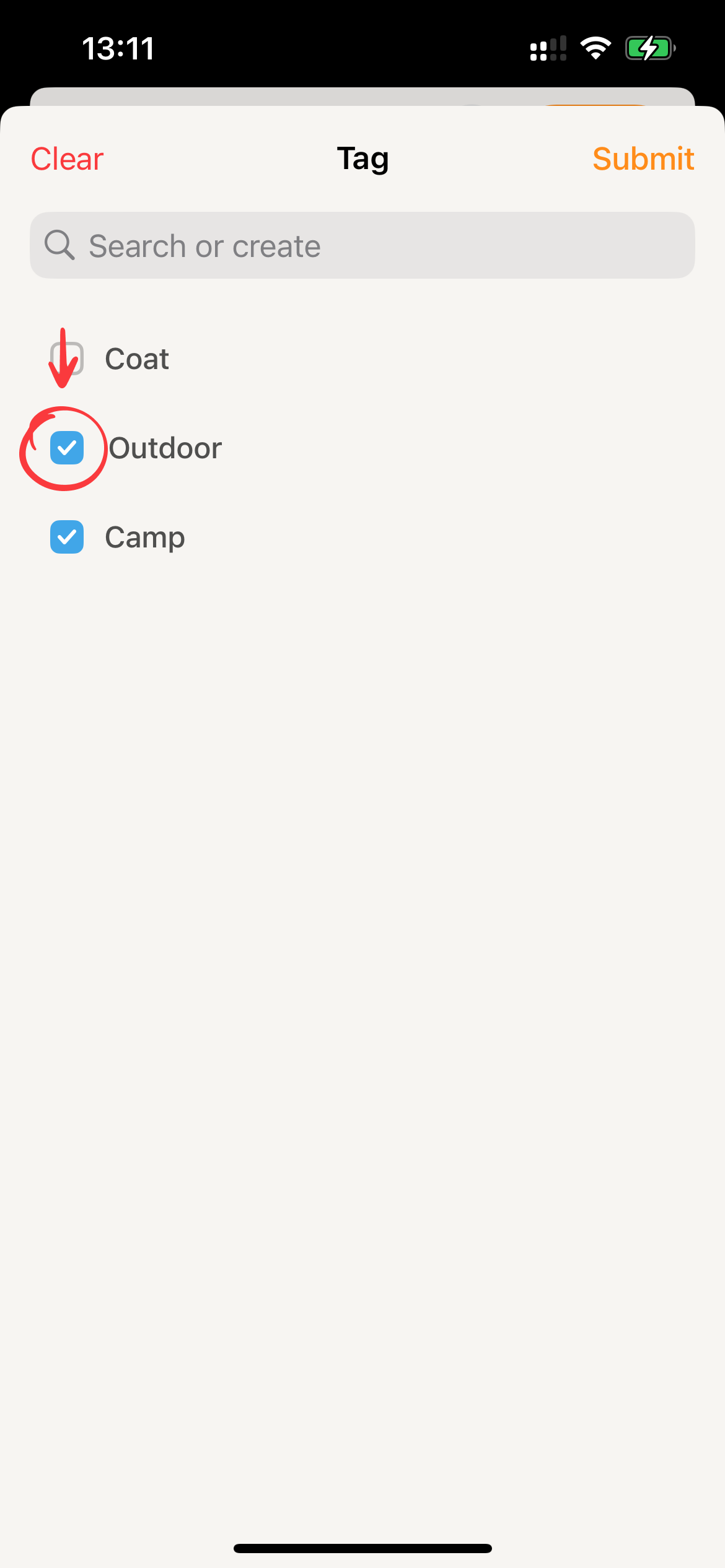
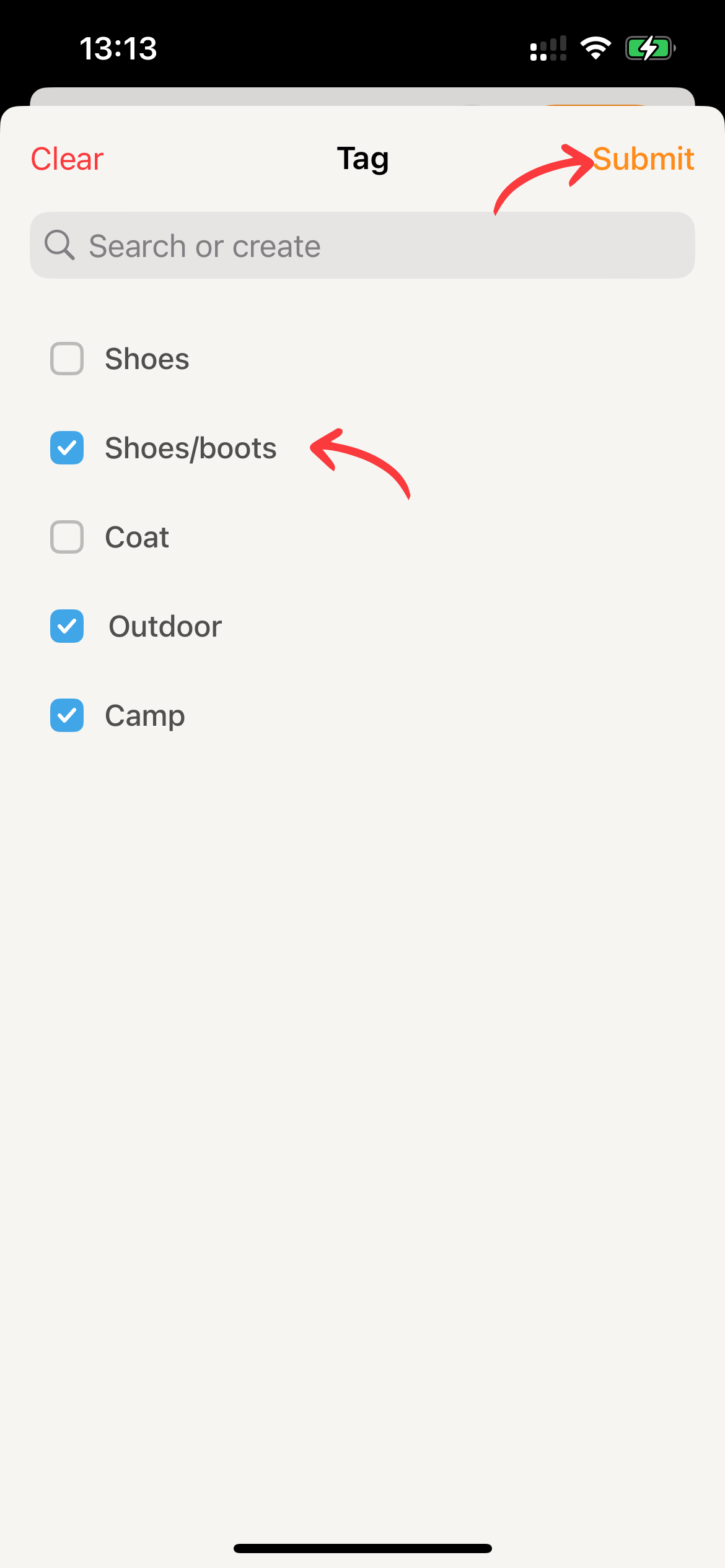
- This page will display all the tags within the current space. Clicking on a tag will add it to the current item.
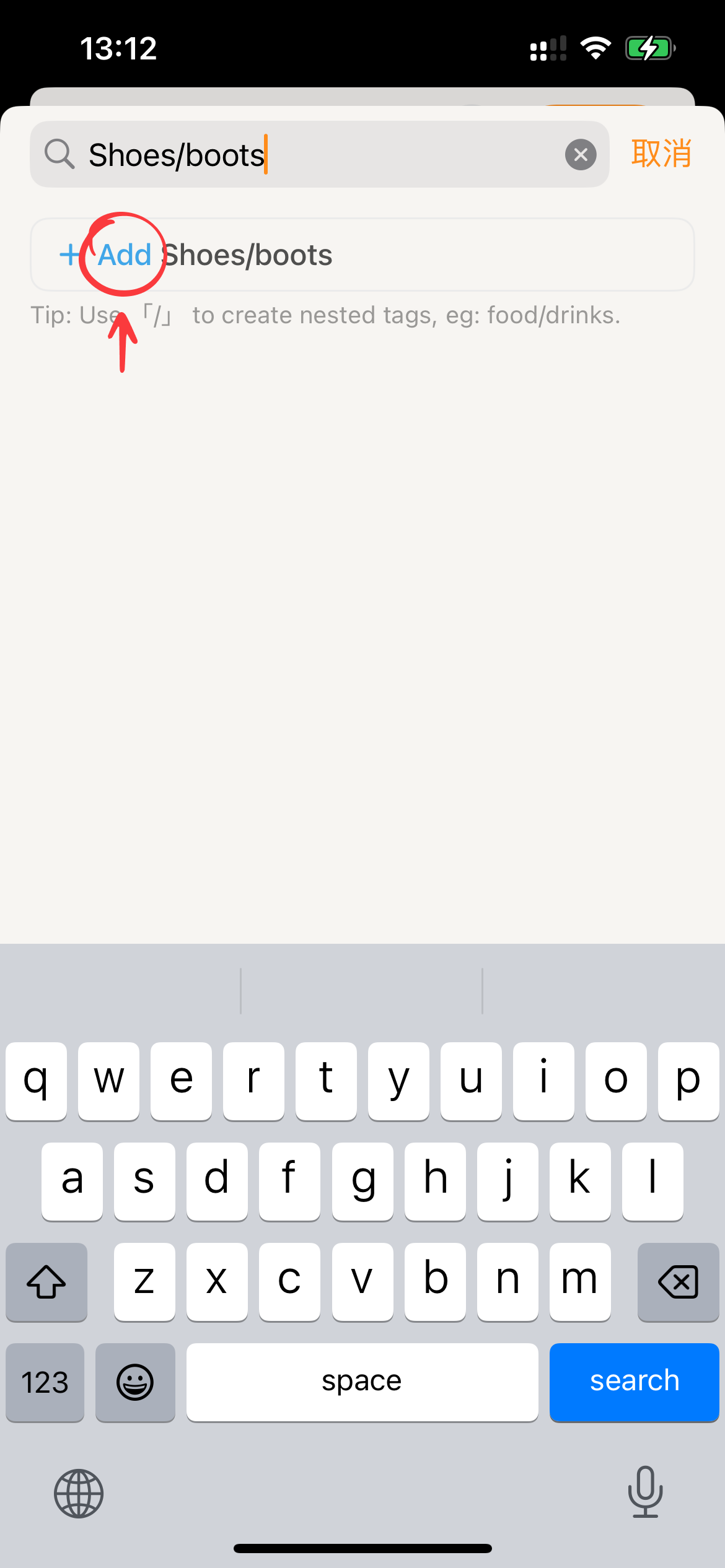
- If the list does not contain the desired tag, you can enter a new tag name in the search box. The ”+ Add ” button will appear, and clicking it will add the newly created tag to the list.
- Using the
/character while entering a tag name will directly create a multi-level tag. For example, enteringColor/Blackwill create a multi-level tag with the parent tagColorand the child tagBlack.
- Clicking the
Submitbutton will associate the selected tags with the current item.
View items associated with a tag
For frequently used tags, we recommend using the Pin tag feature to pin the tag to the homepage. This allows for more intuitive access to the items associated with that tag. For less frequently used tags, in addition to searching, you can also perform the following actions to find them:
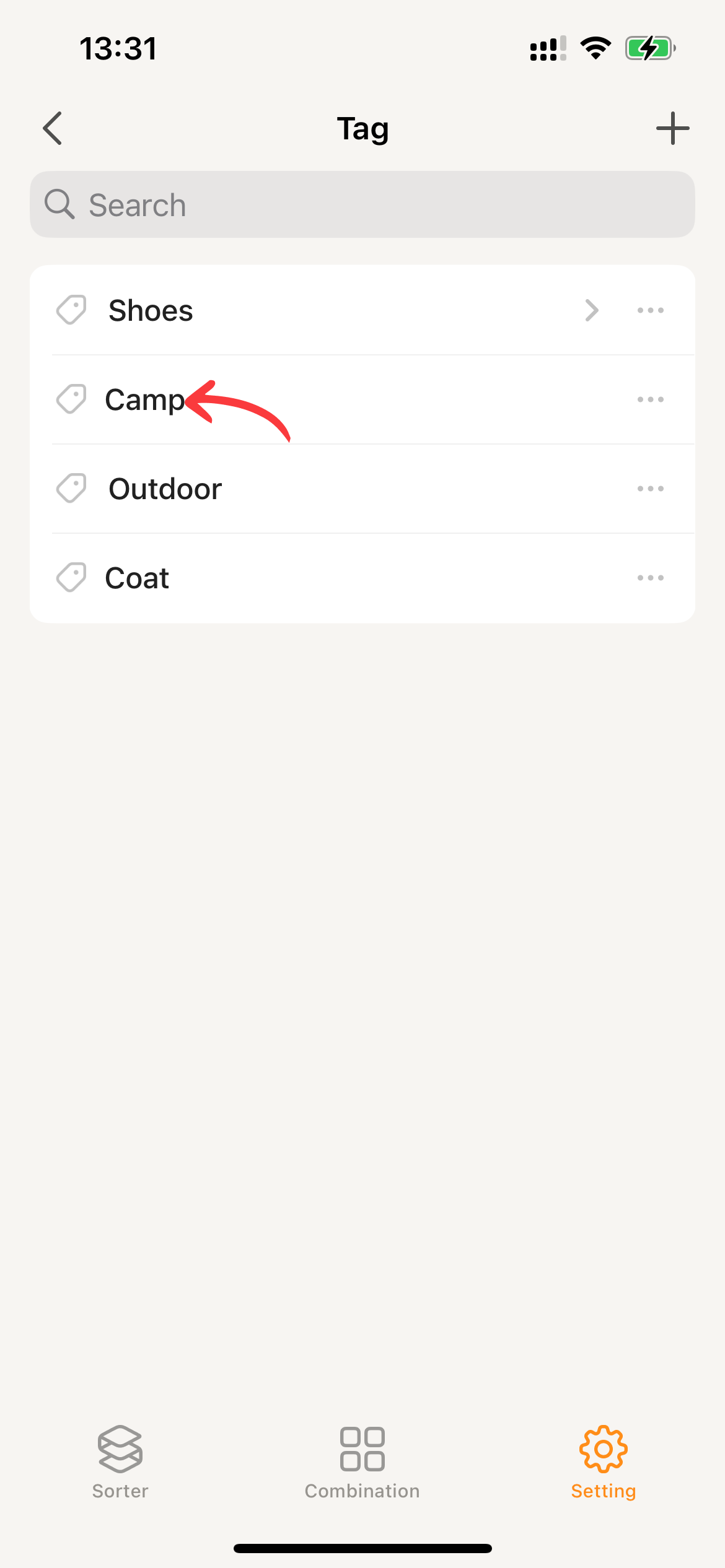
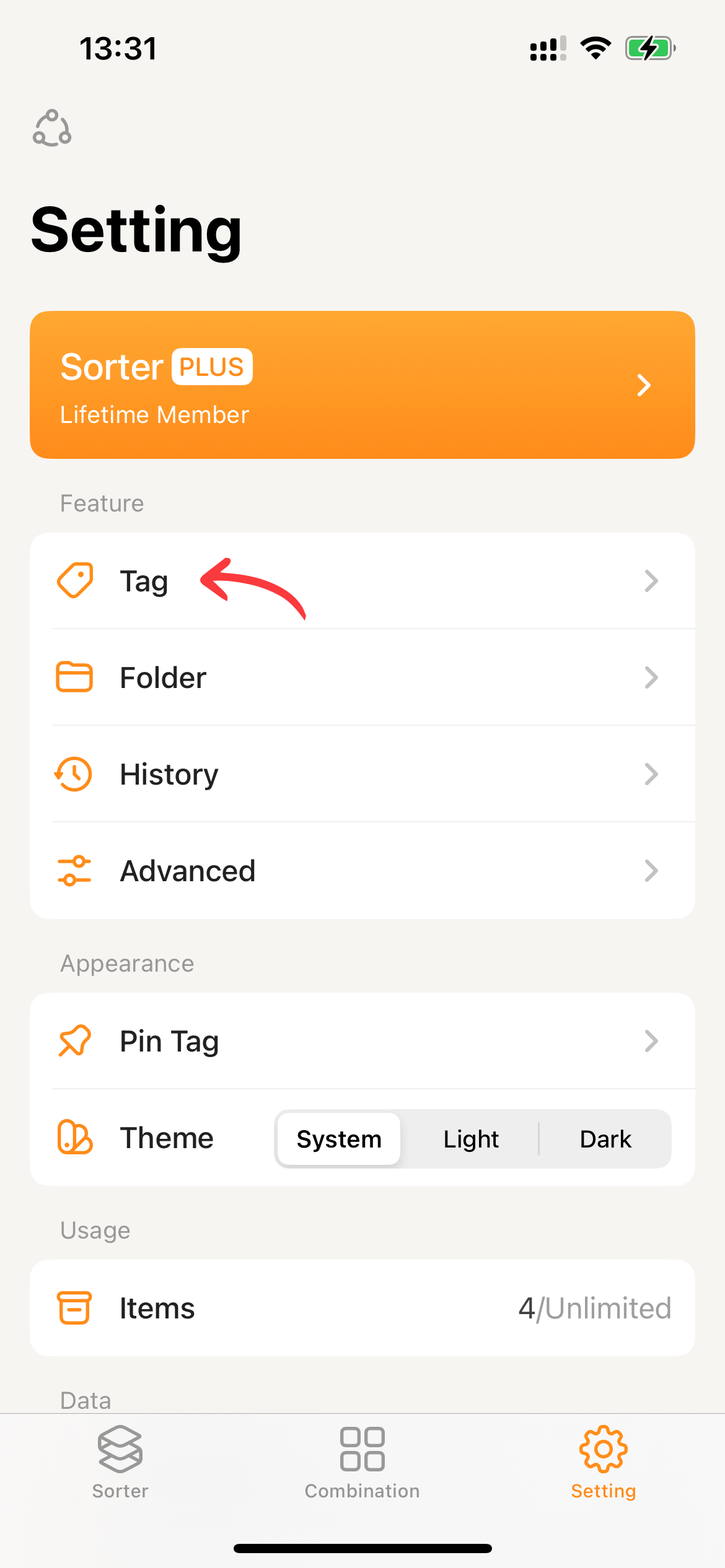
- Go to Settings and click on Tags.
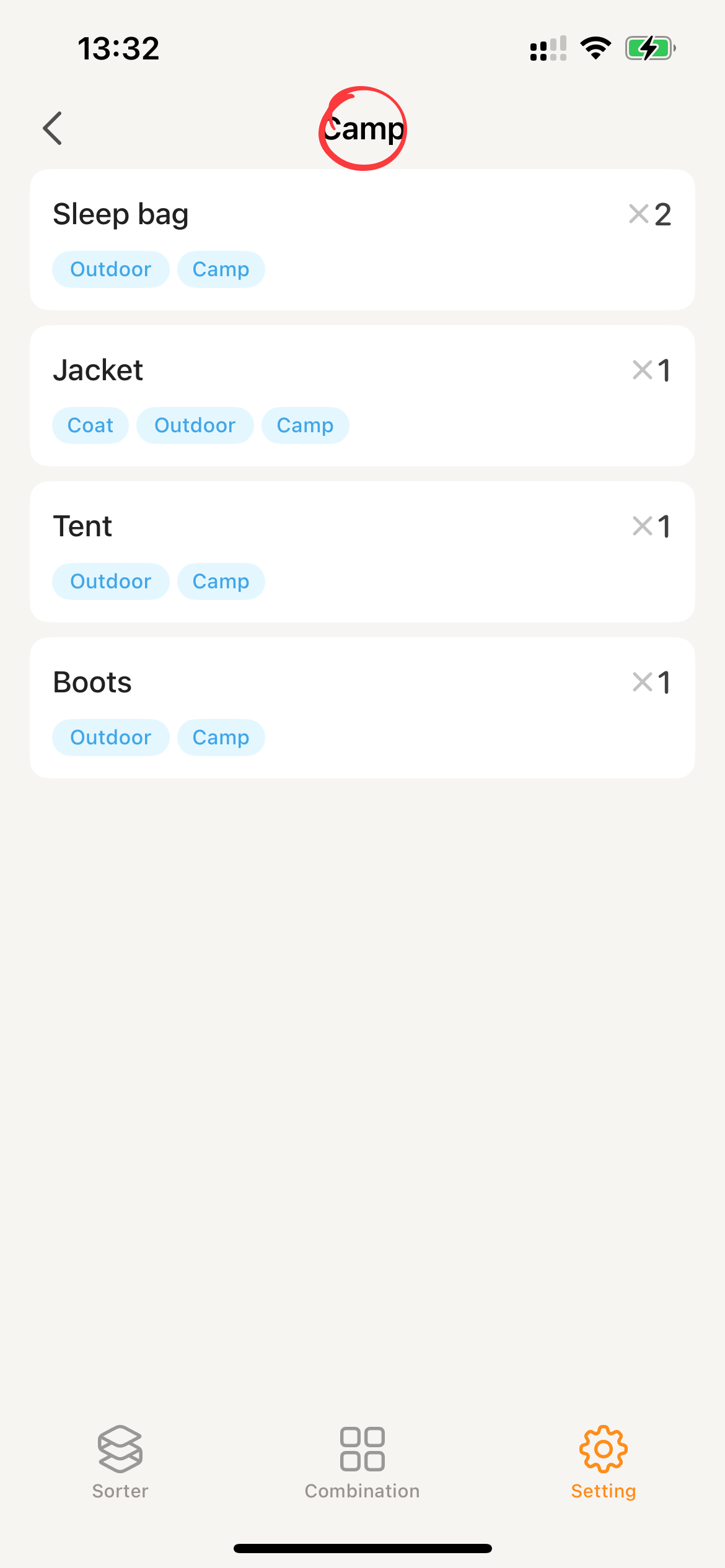
- Clicking on a tag card will take you to the corresponding list of items.